(For Node Operators) How to Use your Key
How to Sign Your HydraVeil Endpoints

Overview:
This guide is for node operators and NOT for just regular users. We’ll be discussing how to use the HydraVeil Key Tool.
Step 1. Get the Tool
The tool can be found on our self-host git found here.
It’s a bash script to use id_ed25519 encryption using OpenSSL.
Security
Both id_ed25519 and OpenSSL, are widely used and well-respected in the industry. This tool is merely streamlining the workflow for signing endpoints.
Allow it to Run
So to run a bash script, you’d first need to right click it to allow it to run.
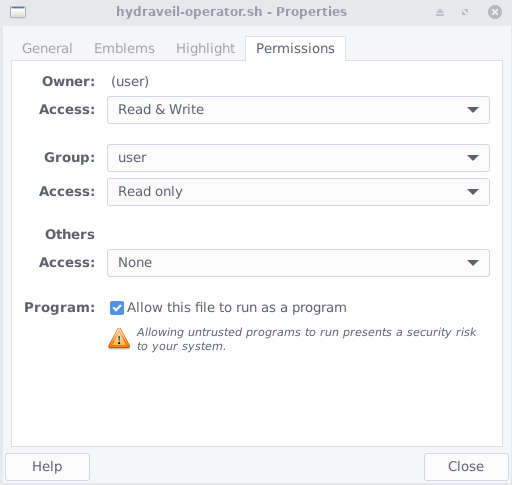
Then just put “./” in front of the file name. So if the file is named “hydraveil-operator”, you’d do:
./hydraveil-operator.sh
It will output the proper use,
Usage: ./hydraveil-operator.sh <action>

Actions:

  initialize
  sign-contract <file>
  sign <endpoint>
  verify <endpoint> <signature>
Step 2. Initialize
So to start off initialize to make the keypair.
./hydraveil-operator.sh initialize
This will output id_ed25519 and id_ed25519.pub. These are the key files, make sure to keep them safe, especially the private key which is the one WITHOUT the .pub.
Step 3. Sign Contract
Next you’d sign the contract. First have the word “sign-contract” then the file name you’re signing. For example to sign a text file named “test.txt”, I’d say,
./hydraveil-operator.sh sign-contract test.txt
This is an example of the type of output, to send back to Simplified Privacy, but obviously your values with differ.
SHA-512 hash of the Contract test.txt:
ed10b0169f793b34ad212bdd2001c363abf92c86b529f99e3a88cb373b9dd6683edc3303f2df692ec246f013a7e60fddf0434c9cc9c3c549ee0d794211f081b5

Operator's Public Key:
ec78a2aac0361100fe6fdcc449d968f087e3e971d585230bccd869b629a0595c

Signature of Contract:
iby/rATlHD1iggNMTbkeSfKs93f754JGByb8bd6WOPZCJLXQVNgEApaNrlvFdlDC1Hudx1gjBrGb/xyPSmzxDA==
Step 4. Setup the Node
Next you’re working with the Simplified Privacy team to setup your node, using our Git.
Step 5. Sign your Endpoint
At the end of your setup, you’ll have the Wireguard Public Key. You’re going to sign this by putting it after the word sign. For example if my Wireguard public key is BLAHBLAHDEMO then,
./hydraveil-operator sign BLAHBLAHDEMO
Then share your output with the team.
For example the output for this fake demo is,
 Signature: GT1F9HfdHR/Hv/Z9QAjFhXSlrkzNocAJqORI/6dH5RWjZ0IyZOubqr3GccjbJsX7
              rYDWHVOgsBOFskI+YPwHDg==

 Provider: ec78a2aac0361100fe6fdcc449d968f087e3e971d585230bccd869b629a0595c
 Endpoint: BLAHBLAHDEMO
Security
Remember to keep these keys safe on a Linux device, and make a backup. (encrypted or offline storage). Do NOT keep or use the keys on Microsoft Windows or Apple devices.
Return to the Operator Checklist
If you really want to learn and take your privacy to the next level, Learn about HydraVeil,
Access our VPN, and subscribe to our new content via:
Podcast,
Email List,
Nostr,
Bastyon,
RSS,
or join the Signal Group
Related Posts

Bareass Mullvad
How any app can rip these VPNs down without sudo
[SP]
Feb 20, 2026
Why a Nostr VPN?!
How should node operators identify themselves?
[SP]
Dec 17, 2025
How a Nostr VPN Works
Node operators verify their identity?!
[SP]
Dec 17, 2025

Why Run a HydraVeil Node
Get Paid, Help Nostr, Help Privacy, & Be Part of Something
[SP]
Dec 17, 2025